Recording and playback
Why can’t I record?
Section titled “Why can’t I record?”Run through this checklist:
-
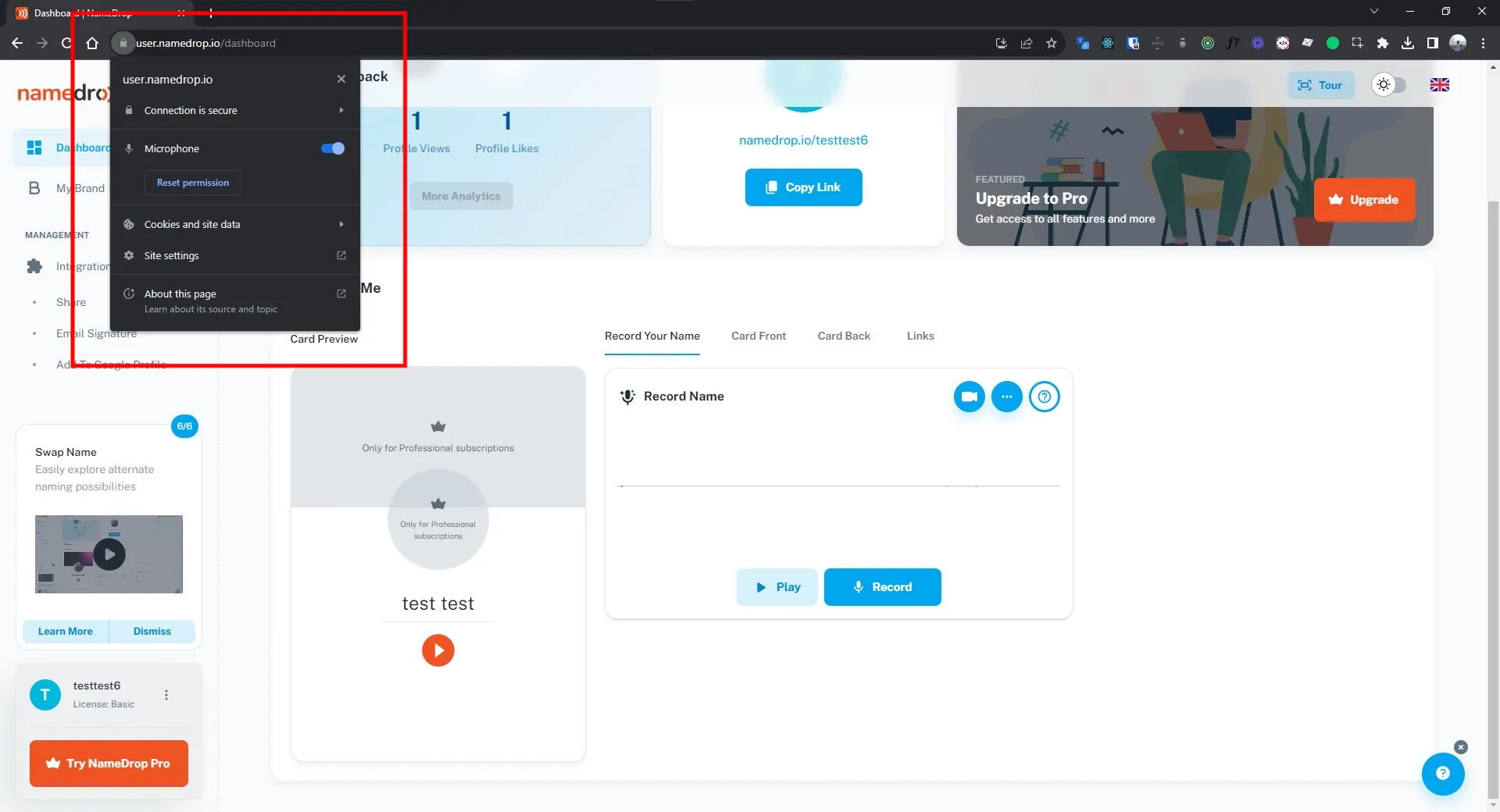
Has the browser been granted microphone permission?
- Chrome: click the lock icon in the URL bar → Microphone → Allow.
- Firefox: look for the microphone icon in the URL bar and grant permission.
- Safari: Preferences → Websites → Microphone → set
namedrop.ioto Allow.
-
Try a different browser. Chrome and Firefox work best.
-
Is a microphone connected? Open another recording app to check that your mic is working at all.
-
Did you select the right microphone? If you have multiple input devices (built-in, USB, Bluetooth), make sure NameDrop has the right one selected.
Why can’t I hear anything when I try to record?
Section titled “Why can’t I hear anything when I try to record?”Same checklist as above. Most “can’t hear” issues are actually “can’t record” issues — the recording never started, so there’s nothing to play back. Verify mic permission first, then re-try the recording.
If the recording exists but playback is silent, check your output device — sometimes the browser routes audio to a different sink (HDMI, Bluetooth) than the one you’re listening on.
How can I record on a device with a better microphone?
Section titled “How can I record on a device with a better microphone?”You’ve got two options:
-
Log in on the other device. Open user.namedrop.io/login on the device with the better mic, and re-record from there.
-
Request a recording-only link from your dashboard. From your dashboard, request a unique link that opens directly into the recorder. NameDrop emails you the link; open it on the device with the better mic. Useful if logging into a personal account on a shared/work device isn’t ideal.